 Concept image
Highway exits
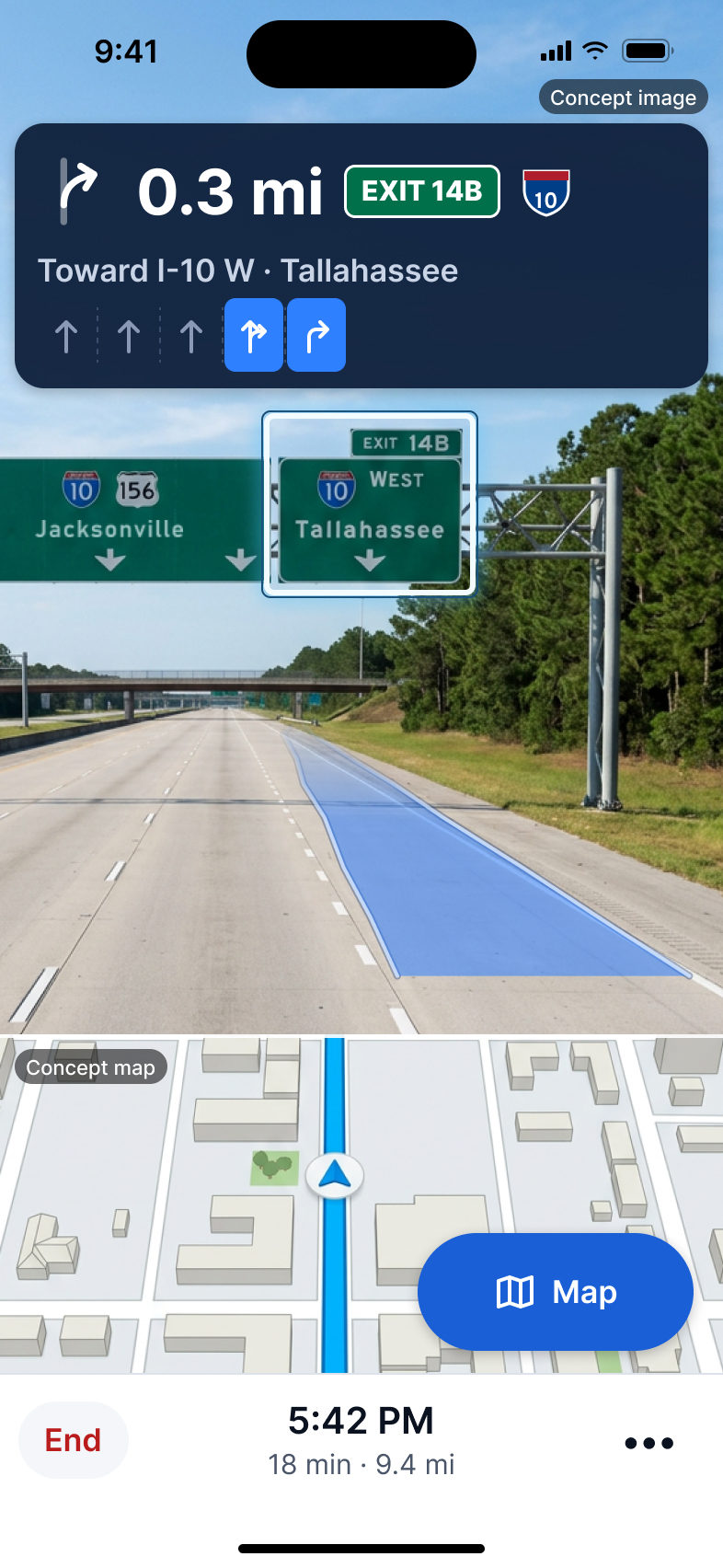
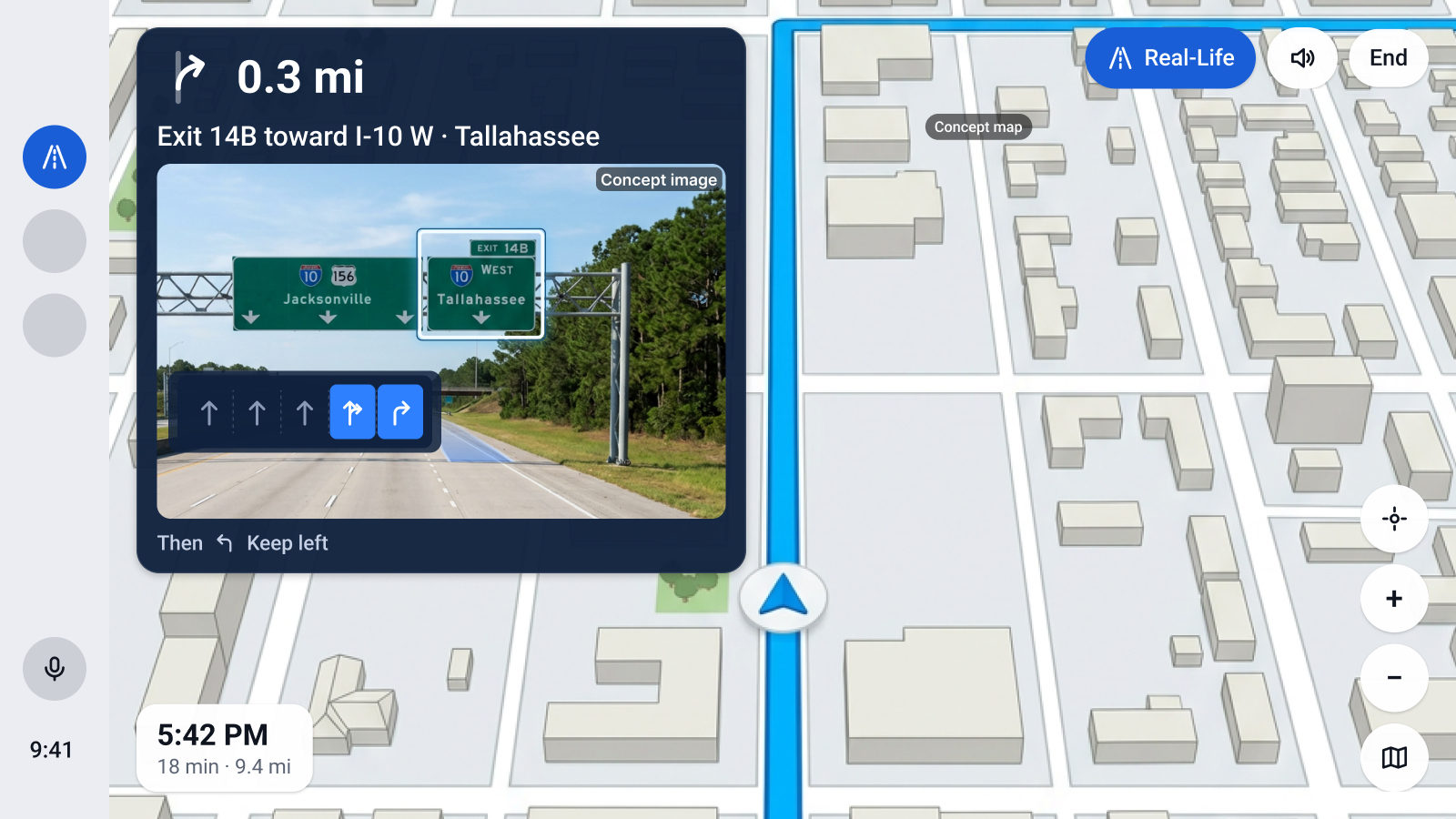
The exit sign you need glows
The sign whose exit number matches your directions lights up, and the band shows exactly where the exit leaves the highway. Left exits stop being a surprise.
Now recruiting beta testers · Jacksonville area and Long Island
TrunkFlow Navigation is turn-by-turn navigation for iPhone and Android, with CarPlay and Android Auto. At the tricky spots, Real-Life View shows a real street-level photo of the junction just ahead, paints your route on the road and lights up the one sign, traffic light or stop sign to follow.
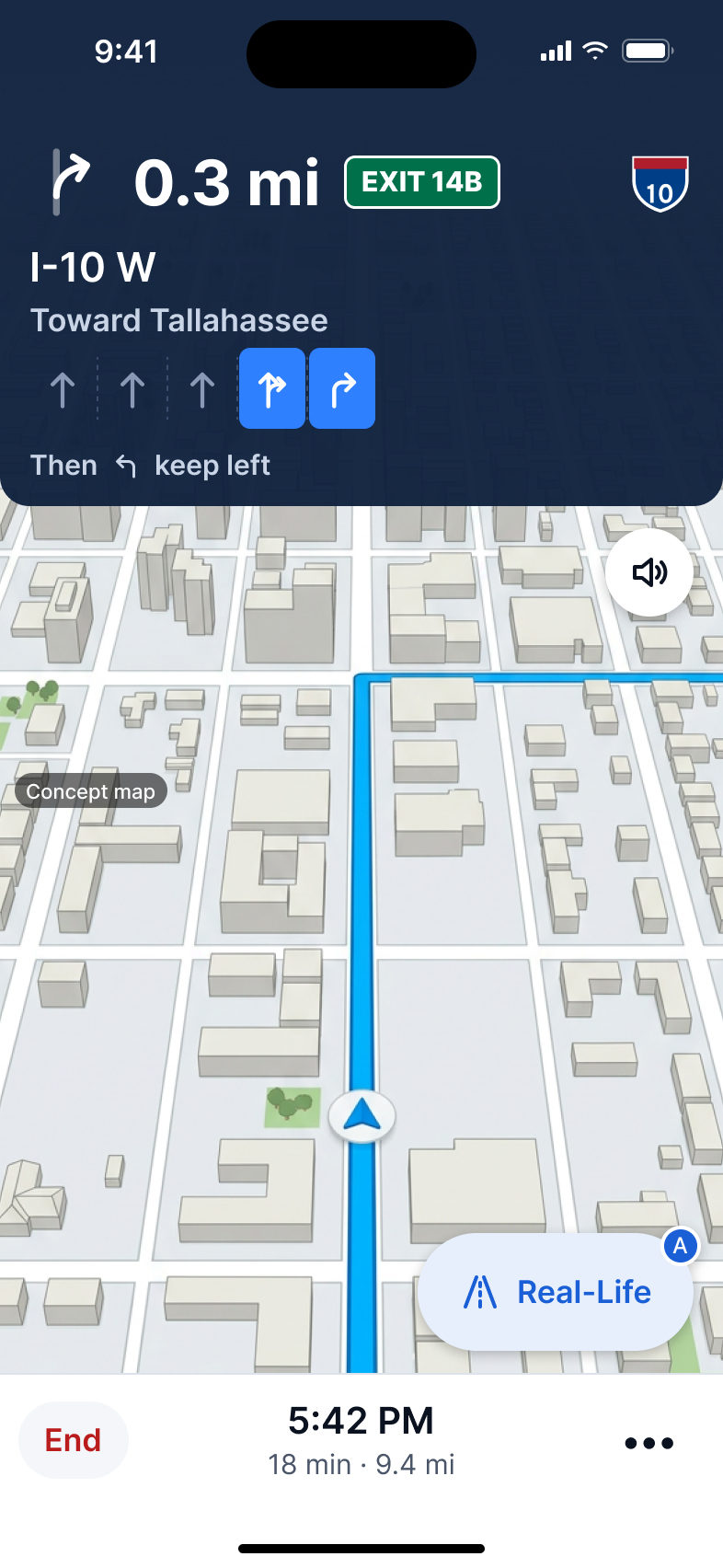
Concept design. Tap Map or Real-Life to switch.
Real-Life View
Cruise on the map you know. When a junction gets complicated, see it the way it looks through your windshield.
The photo shows the road from about two car lengths in front of you, so it looks like your view of the road, not a satellite.
A soft glowing band follows your lane through the junction and fades with distance.
The exit sign, traffic light or stop sign you need lights up. Everything else stays calm.
A slim live map sits under the photo, so you always see where you are on the route.
Tap Real-Life to open it, and Map to go back. Or turn on automatic mode and it opens by itself about 20 seconds before each turn, exit, traffic light and stop sign, then returns to the map.
Inside Real-Life View
How it works
Real-Life View combines a street-level photo, your route and on-device recognition of road signs. Here’s what happens before each tricky spot.
It picks the street-level photo on your road, facing your direction, a few car lengths ahead of you, and skips photos that are too old to trust.
Your route is projected onto the road surface in the photo as a glowing band, shifted into your lane and snapped to the lane lines.
On-device recognition looks only for road signs, traffic lights, stop signs and lane markings. It never looks for people, and photos are never saved or uploaded.
It reads the exit number and road names on each sign and compares them with your route. If it isn’t sure, it lights up nothing rather than the wrong sign.
Use cases
Real-Life View is most useful where a map isn’t enough: busy interchanges, unfamiliar corners and the last few hundred feet of a trip.
Concept imageThe sign whose exit number matches your directions lights up, and the band shows exactly where the exit leaves the highway. Left exits stop being a surprise.
 Concept image
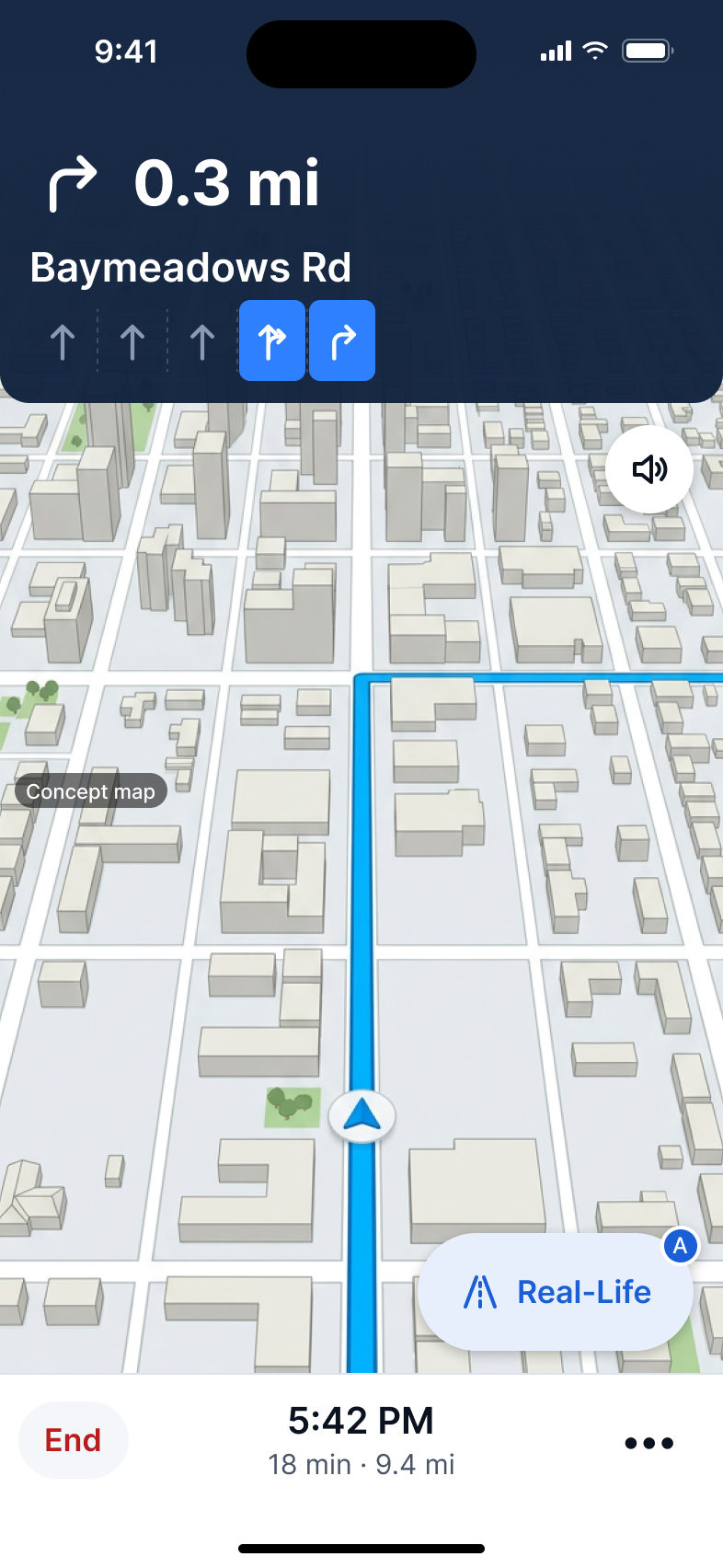
Before a turn or a split, every lane that leads where you’re going is highlighted, so you can move over calmly instead of at the last second.
 Concept image
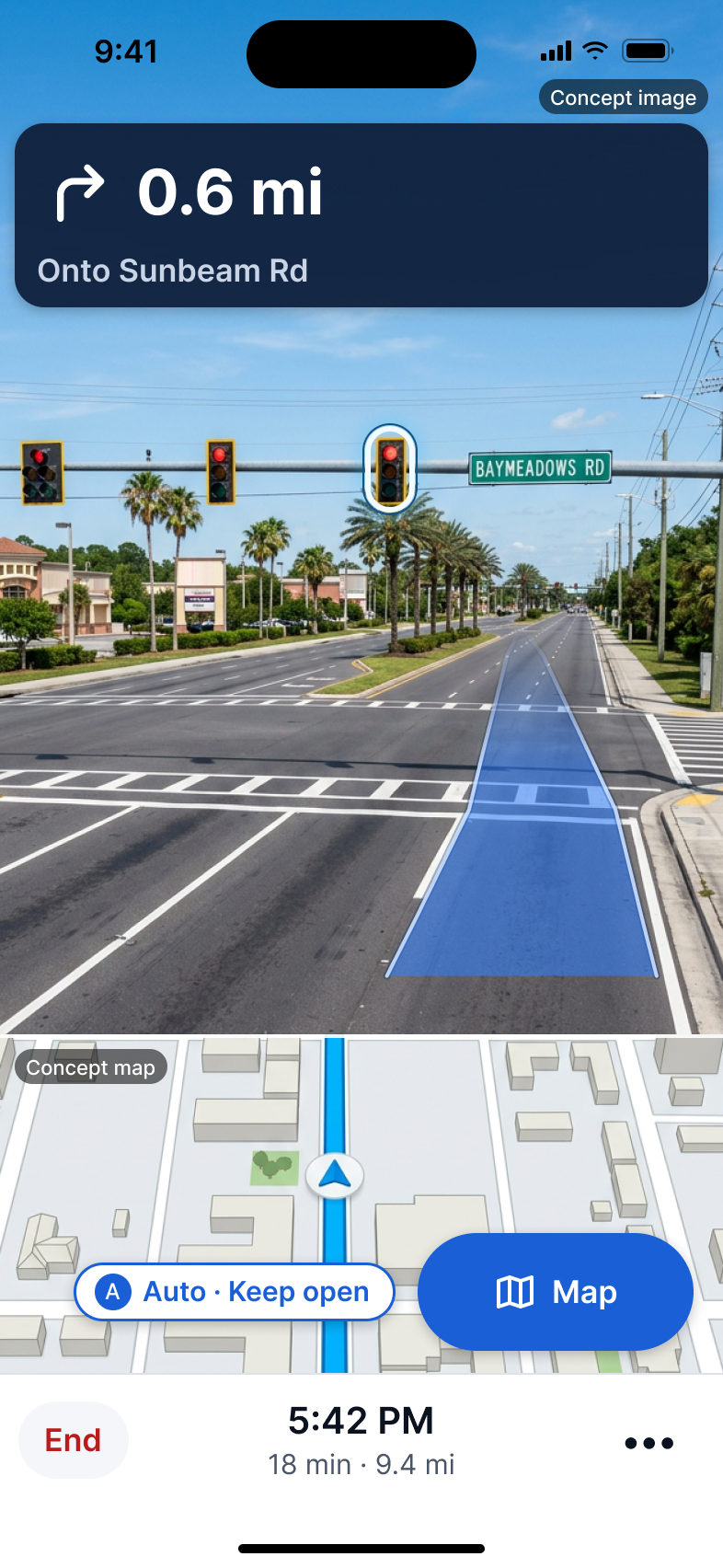
Before a signal, the light that controls your approach is highlighted. The photo isn’t live, so the app never shows or guesses the light’s color: always watch the real one.
 Concept image
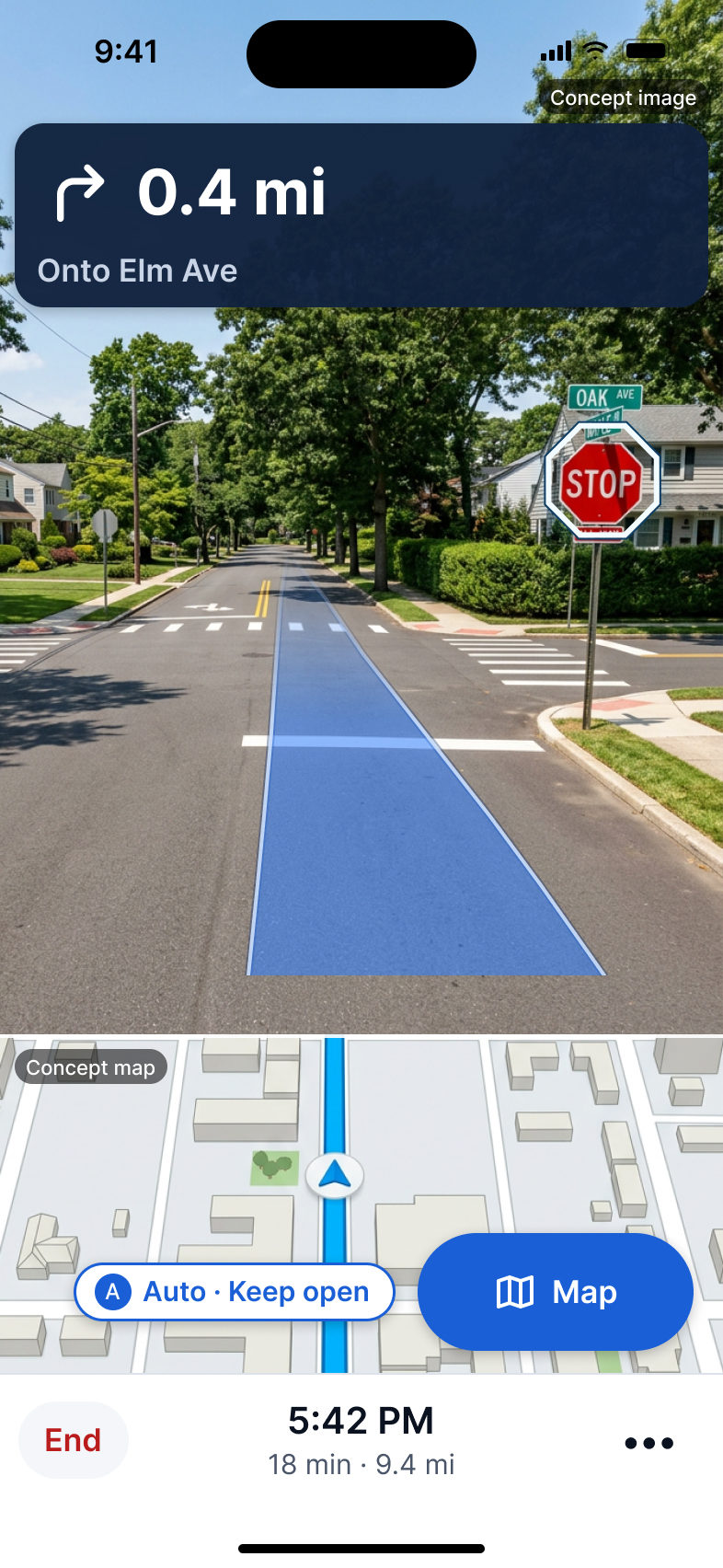
On unfamiliar streets, the stop sign for your direction is highlighted before you reach the corner, even when it’s half hidden by trees.
 Concept image
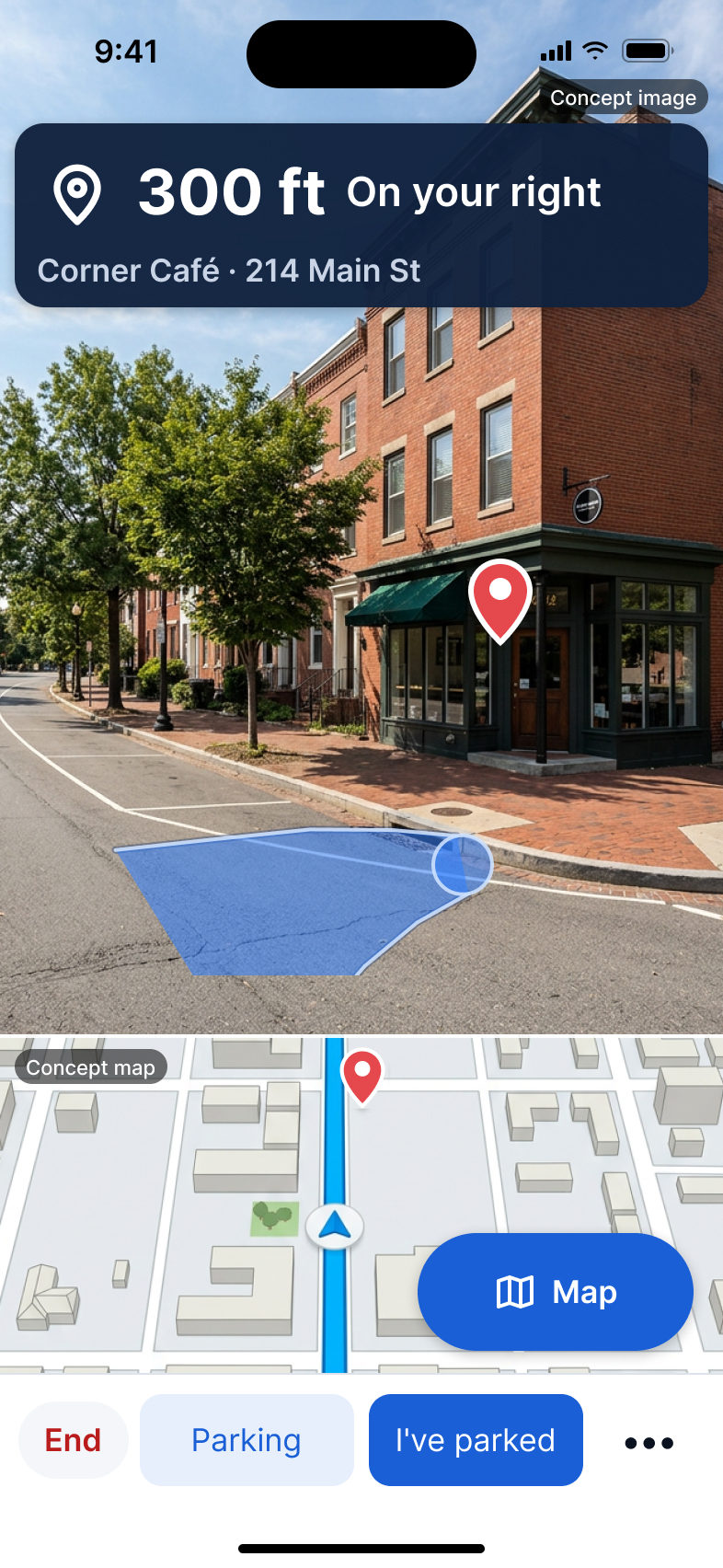
As you arrive, see a photo of the destination with a pin, which side of the street it’s on, and nearby parking.
 Concept image
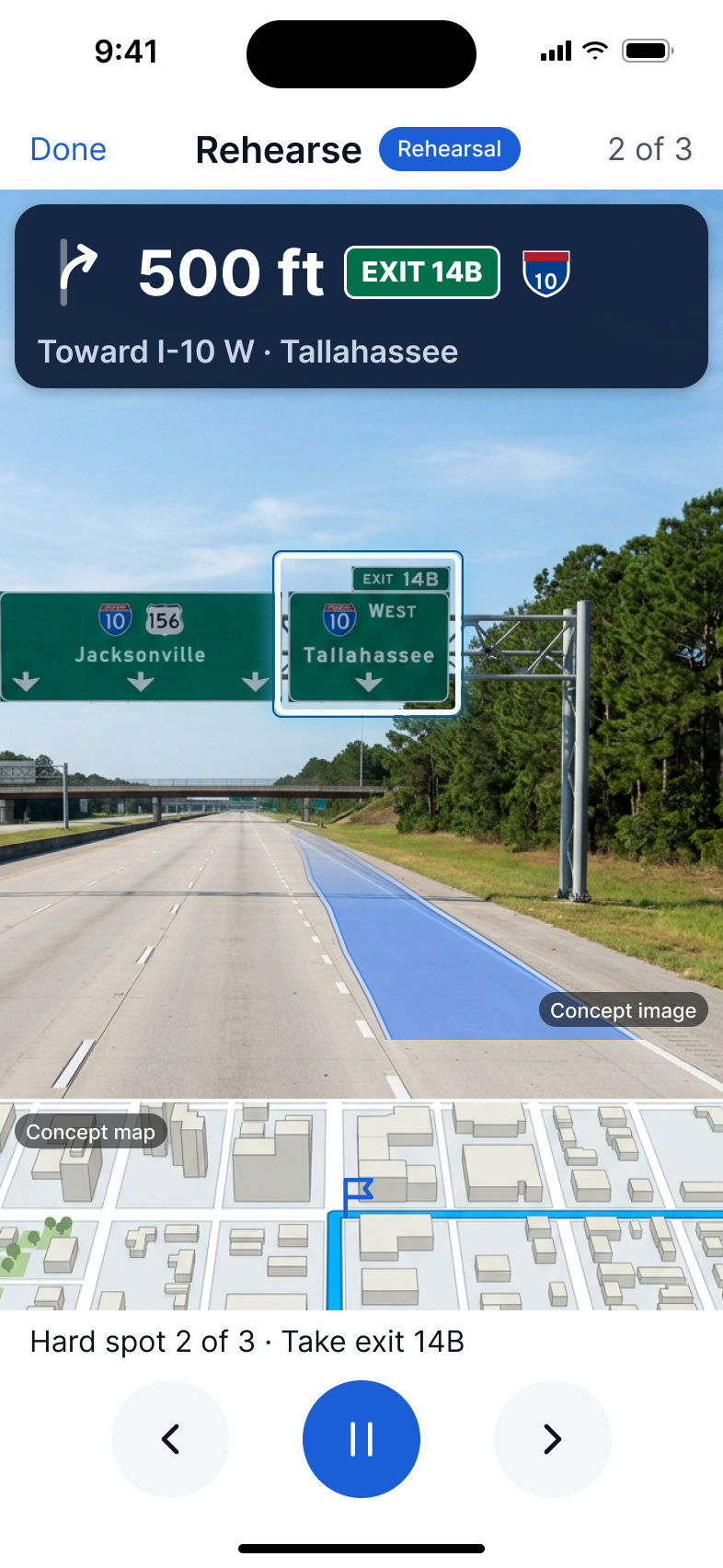
Before a new drive, step through the route’s hardest spots in Real-Life View while you’re parked. Route options even show how many hard spots each one has.
Try the demo
Tap through a drive the way the app will show it. At each step you can switch between the map and Real-Life View.
Concept design. Photos are AI concept images, not Street View.
Car screens
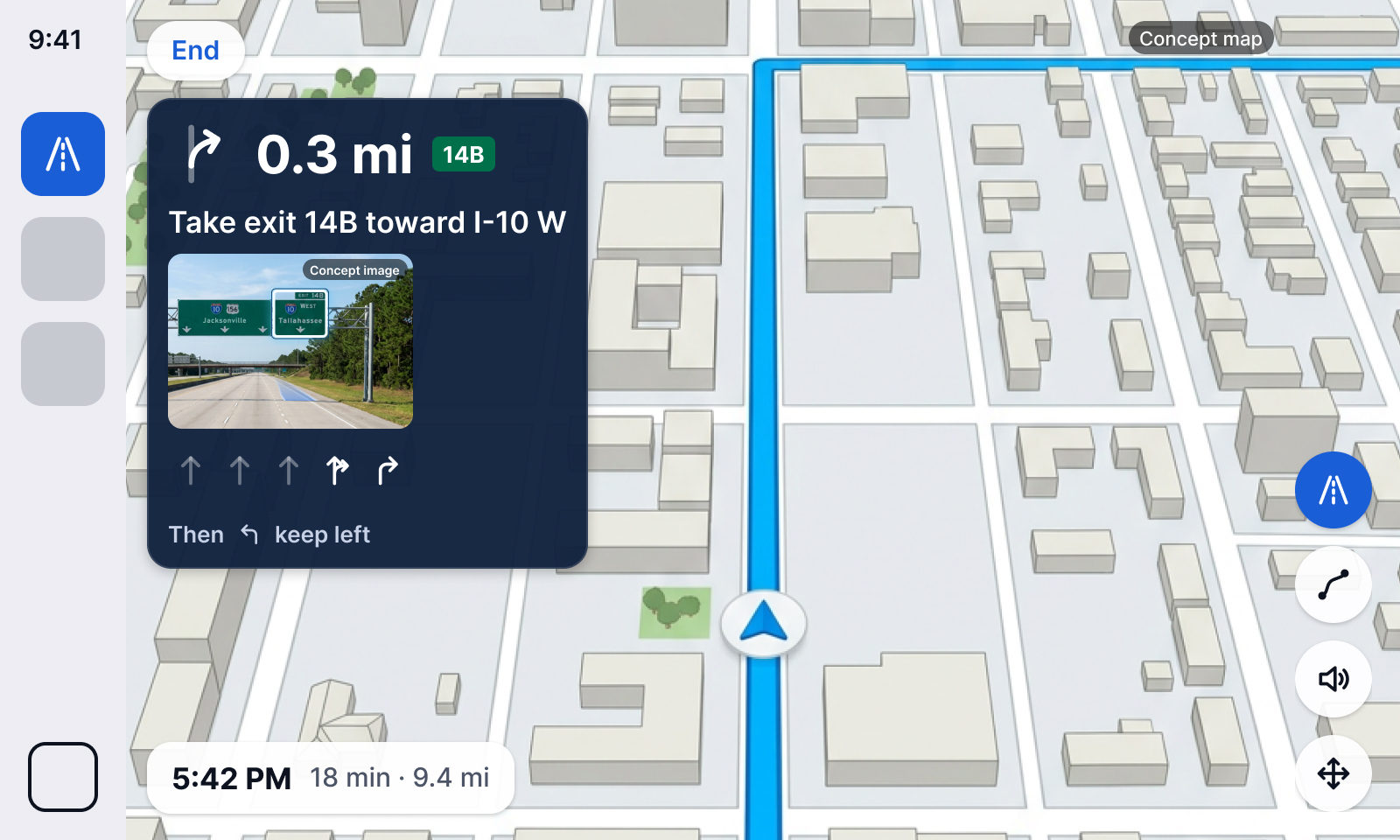
On CarPlay and Android Auto the map stays big, and Real-Life View appears as a still picture of the junction in the turn panel, updated once per maneuver.
Safety and privacy
Use it with your phone in a dash or vent mount, or on your car’s screen. Large type, one-tap controls, and no typing while you drive.
It highlights every lane that works but never claims to know which lane you’re in. It never shows a light’s color. When it isn’t sure, it highlights nothing.
On-device recognition looks only for signs, traffic lights, stop signs and lane markings. Photos are never saved or uploaded.
Your trips stay on your phone. No ads, and we never sell your location.
FAQ
About 50 drivers in the Jacksonville area and on Long Island use the app for 8 to 12 weeks, drive a few test routes each week with a passenger, and tell us what works and what doesn’t.
Once the app is ready. We review applications every week and will contact you before testing begins. Applying doesn’t guarantee a spot.
An iPhone XR, XS, SE (2nd generation) or newer, or an Android phone with the Play Store on Android 10 or newer. Cars with CarPlay or Android Auto are welcome but not required.
No. Testing is free, and testers who finish the beta get one year of Pro free after launch, plus a thank-you.
For the logged test drives, yes: an adult who rides along and logs issues with one tap, so the driver never has to touch the phone.
They’re designs of the app. The photos in them are AI concept images and the maps are concept art, so details will look different in the real app.
Apply to test
Before it’s released, we’re looking for about 50 drivers in the Jacksonville area and on Long Island to try it on real roads and tell us what works and what doesn’t.
Your phone stays in a dash or vent mount below your line of sight, or the app runs on your car’s screen. The driver never holds the phone or types while the car is moving, and follows all traffic laws. This is a test version of the app: you always make your own driving decisions.
Step 1 of 5
We review new answers every week and may call you for about 10 minutes. The beta starts once the app is ready, and we’ll contact you before then. Applying doesn’t guarantee a spot.
This beta needs testers who meet every requirement under “What you need,” so we can’t include you this time. Your answers haven’t been sent to us.
We’ll email you when TrunkFlow Navigation launches. Thanks for your interest.